
當前位置:首頁>科技> word2013中如何使用代碼高亮插件
發布時間:2025-10-26閱讀( 17)
|
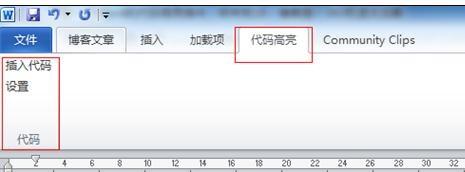
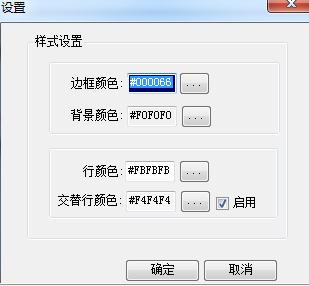
使用代碼高亮插件的步驟如下: 步驟一:下載插件和源代碼:SyntaxHighlighter4Word.zip 步驟二:下載文件后,解壓,然后雙擊bin\word2010\Kong.SyntaxHighlighter.Word2010.vsto或bin\word2007\Kong.SyntaxHighlighter.Word2007.vsto,即可完成安裝,當然前提是你裝了.net framework 4.0。安裝成功后的提示如下:
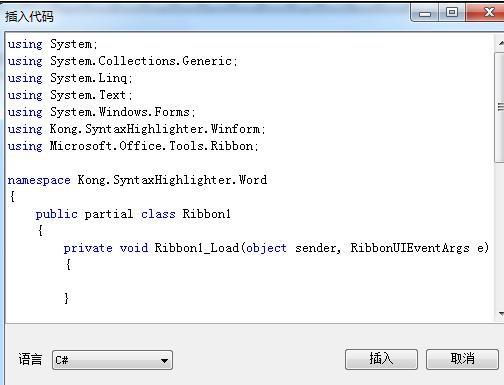
步驟六:點擊"插入代碼"按鈕,彈出如下界面:
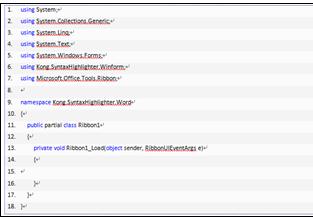
步驟八:在word效果如下:
using System; using System.Collections.Generic; using System.Linq; using System.Text; using System.Windows.Forms; using Kong.SyntaxHighlighter.Winform; using Microsoft.Office.Tools.Ribbon; namespace Kong.SyntaxHighlighter.Word { public partial class Ribbon1 { private void Ribbon1_Load(object sender, RibbonUIEventArgs e) { } } } 步驟十:我在Word中生成這段代碼的時候,用了ol和li,并且設置了ol以及li的style,這樣在word中就可以顯示邊框以及交替行的顏色,同時給ol設了一個class=codeBlock,妄想在發布到博客后可以通過這個樣式名codeBlock來自定義自己喜歡的樣式。我在word中生成的代碼大概是這個樣子:
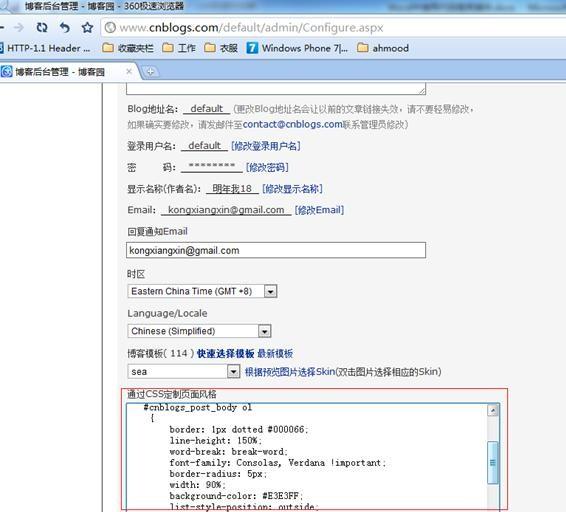
步驟十一:所以我們在博客中,不得設置所有ol的style,幸好博客園的文章都是在一個id為cnblogs_post_body的div下的,所以我在我博客中加了下面的style: #cnblogs_post_body ol { border: 1px dotted #000066; line-height: 150%; word-break: break-word; font-family: Consolas, Verdana !important; border-radius: 5px; width: 90%; background-color: #E3E3FF; list-style-position: outside; margin-left: 0px; } #cnblogs_post_body ol font { font-size: 12px !important; } #cnblogs_post_body ol li { background-color: #fff; padding-left: 5px; border-left: 1px solid #8A8AFF; margin-left: 5px !important; } #cnblogs_post_body ol li:nth-child(even) { background-color: #f5f5f5; } 步驟十二:補充一下,這段文本是加在這里的:
|
Copyright ? 2024 有趣生活 All Rights Reserve吉ICP備19000289號-5 TXT地圖HTML地圖XML地圖